.png?width=1200&height=628&name=Poz_google_ad_pic_transparent%20(2).png)

Proofing is one of those stages in audiobook production that rarely gets the spotlight, but it’s where accuracy and consistency come together before editing and distribution.
Pozotron’s Proofing Tool does more than catch missed words and misreads; it includes many powerful hidden gems you might not know about. These can make proofing faster, easier, and more collaborative than traditional methods ever could.
Let’s explore these features of the Proofing Tool that you might not be using yet, and how they help you work smarter, not harder.
1. PDF Repair: Fix Your Script Before You Proof
One of the biggest hurdles in proofing is simply getting your script into a state that Pozotron can accurately match to audio. PDFs often contain hidden formatting issues, ligatures, or images that make the text unreadable by most software, not just Pozotron.
You may see gibberish characters, mismatches, or strange annotation errors during proofing if the script isn’t parsed correctly.
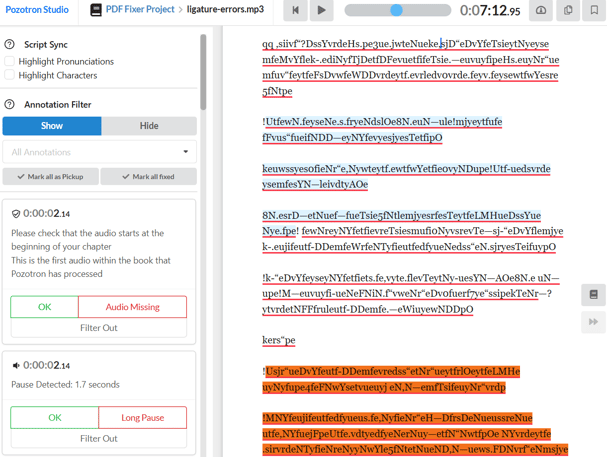
Pozotron’s PDF Repair Tool lets you fix these issues inside the platform, no extra cost or software required.
How It Works
From the Proofing tab, click on the PDF Repair tool.
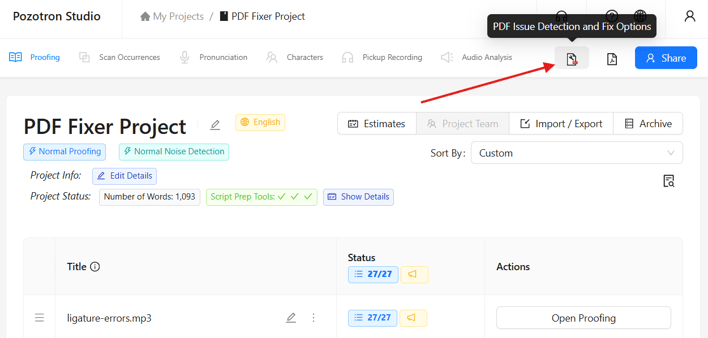
You’ll be able to select from a few different options to get your script readable:
- OCR (Optical Character Recognition): Extracts text from scanned PDFs or images, making it readable and searchable.
- Double-page Spread: Splits pages that were scanned as two pages into one, helping Pozotron read text in the correct order.
- Remove Images: Strips out graphics that might interfere with text parsing.
After selecting the appropriate settings, click Fix My PDF and let Pozotron reprocess the manuscript. This may take a few minutes, but once it’s complete, your proofing workflow will be much cleaner and more accurate.
You can find more information on our PDF Repair tool at our Help Center.
Why It’s a Gem
PDF issues are often invisible until you try to proof. A file may look fine on your PDF reader, but if it can’t be parsed correctly, proofing becomes unreliable. Fixing the text layer early avoids false positives, mismatches, and unnecessary pickups.
Pro Tip: Run your manuscript through PDF Repair before uploading audio to avoid issues, and this allows you the opportunity to replace the manuscript if needed.
2. Typo Report: Catch Manuscript Errors
Beyond audio mismatches, proofing issues can also stem from the manuscript itself. Typos, repeated words, and formatting flaws can create ambiguous proofing annotations, even if your narration is perfect.
While you may catch some of these during your prep stage, others may slip through.
If you’ve marked errors as typos during the proofing stage, the Typo Report compiles them into a simple, shareable export.
How It Works
Once your audio is proofed and typos marked, go to the Import/Export section on the proofing page and export the Typo Report. This summarizes all potential text errors in a dedicated, organized view.
Why It’s a Gem
Many narrators assume that proofing only concerns audio, but opportunities to strengthen the written text are just as valuable, especially in indie projects where the manuscript may not have had a professional editor. Catching typos early helps you:
- Bring issues to the author or rights holder
- Avoid confusion during proofing
- Improve the overall quality of the audiobook and text
3. Multi-Narrator Project Support: Keep Teams Organized
Audiobooks with multiple narrators introduce complexity. Pozotron’s proofing workflow includes features to help manage multi-narrator projects.
There are a few flexible ways to keep proofing organized when multiple narrators are involved:
- Use Narrator Tags: Inside a single project, you can tag annotations with narrator identifiers (e.g., @narrator1, @narrator2) or add the narrator tag to the file name before uploading. When you export proofing reports or pickup packets, Pozotron can automatically split them into separate tabs or files based on these tags.
- Separate Projects per Narrator: You can create different Pozotron projects for each narrator’s audio if you prefer fully isolated workflows. This keeps reports, pickups, and annotations distinct.
- Label Your Audio with Narrator Names: If you name your files with narrator identifiers (e.g., Chapter1_NarratorName.mp3), Pozotron will preserve those names, making sorting exports easier.
Why It’s a Gem
Multi-narrator support keeps your team from losing time and keeps pickup reports structured. Whether you’re handling proofing yourself or sending them to multiple narrators or engineers, this feature supports complex recording workflows without manual splitting or copying.
Pro Tip: Decide early how you want your proofing reports organized, then set up tags or filenames consistently before uploading audio.
4. Annotation Filtering & Custom Export Options
Proofing generates lots of data. Annotations for missed words, pronunciation issues, added words, and more. Not every annotation matters or needs to be corrected by the narrator.
Pozotron includes flexible tools to help you mark, filter, and export exactly what you need.
Annotation Filters
You can filter annotations inside the proofing interface to only show:
- Missed words
- Long Pauses
- Inserted words
- Pronunciation mismatches
- Custom tags
This filtering lets you focus only on the pickups that matter right now, rather than getting overwhelmed by every single annotation.
Custom Export Options
When exporting proofing data, you can choose what types of annotations to include in pickup packets or reports. That means engineers and co-narrators can receive tailored exports, only the pickups relevant to them, saving time and reducing confusion.
Why It’s a Gem
Rather than treating proofing reports as one huge, monolithic document, you can shape outputs for specific workflows and team members.
5. Pickup Packets
Once proofing is complete, the next step for narrators is clear: record pickups efficiently and accurately. Pozotron’s Pickup Packets are designed specifically with narrators in mind, helping you move from proofing to re-recording without confusion or wasted time.
What Pickup Packets Include
Pozotron generates pickup packets that contain:
- Each flagged pickup is clearly listed with the error
- Timecodes for reference
- Script context around the issue
- Easily playable audio of the sentence where the pickup exists
- Narrator tags (when used in multi-narrator projects)
This creates a focused, narrator-friendly document that shows exactly what needs to be fixed, no guessing or scrolling through multiple documents or files.
Why This Is a Hidden Gem
Traditional proofing often results in messy lists and switching between multiple screens or files. Pozotron’s pickup packets are easy to read, succinct, and narrator-focused, which respects your time and recording workflow.
6. DAW Marker Exports: Precision Tools for Editors
While pickup packets are designed for narrators, DAW Marker Exports are built for editors and engineers. This feature bridges the gap between proofing results and post-production, ensuring fixes land exactly where they belong in the timeline.
What DAW Marker Exports Do
Pozotron allows Proofing annotations to be exported as DAW-compatible marker files, which editors can import directly into their supported digital audio workstations.
Instead of manually translating timestamps or scanning spreadsheets, editors can jump straight to the problem areas.
Why This Is a Hidden Gem
This feature removes one of the most time-consuming steps in post-production: manual navigation. Editors don’t have to hunt for issues or cross-reference documents; they see everything directly in the session.
DAW marker exports:
- Reduce editing time
- Minimize human error
- Keep projects moving smoothly toward delivery
Pro Tip: Check out our Help Center for instructions on using the exports and the DAWS we currently support. We support all major DAWs, but if you don’t see your favorite listed, let us know!
7. Scan Occurrences: Spot Patterns, Not Just Single Errors
One of the most powerful features of the Pozotron Proofing Tool is Scan Occurrences. Scan Occurrences enables you to quickly locate every occurrence of a word in your script and audio files.
Instead of treating each instance as a separate issue, Pozotron groups them together so you can review them as a set. This is especially useful when a name or term may have been pronounced inconsistently.
Why It’s a Hidden Gem
Scan Occurrences helps you catch mispronunciations, make corrections, and maintain full control over audio quality. It’s the difference between “fixing mistakes” and quality control at scale.
Proofing as Precision, Not Guesswork
Proofing isn’t a simple step in audiobook production; it’s a critical control point. It’s where the listener’s experience is safeguarded, and the narrator’s work shines cleanly.
Whether you’re navigating indie productions or working with full production teams, integrating these features into your proofing workflow will save you time, reduce frustration, and deliver cleaner, more accurate audiobooks.
Pozotron's Proofing Tool is designed to streamline your proofing and pickup process. If you have questions or need assistance, our support team is ready to help.
Ready to try these out on your next project? Log in and start exploring, or reach out to help@pozotron.com if you'd like a quick walkthrough of any feature!